Select the module’s function from the list below.
Unable to find the information you are looking for? Try searching Forum, or contact the helpdesk for assistance.
Navigating the Portal
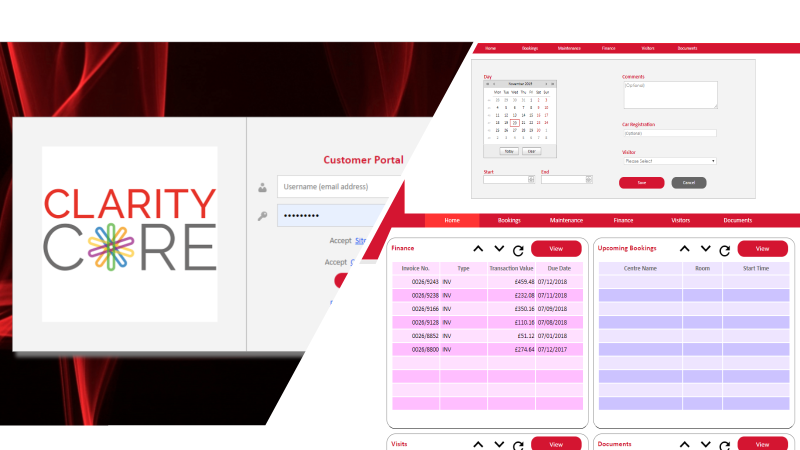
Once you have successfully logged on to the Portal, you will be presented with a Home Page.
From Home Page you can view basic details of your upcoming meeting room bookings, visitors, maintenance requests, financial documents and a list of other documents from the repository.
The Portal offer you an access to:
• Meeting room availability, room bookings & catering requests,
• Service Desk Requests,
• Site visitor registration,
• Invoicing,
• Standard documents.
To expand the view of an item, simply click on it in the relevant list. Alternatively, click on the View button next to the list to open a more detailed view of the items. These views can also be accessed from the respective options in the menu bar.
Meeting Room Availability
You can view live meeting room availability on the Portal, as well as using it to request new meeting room bookings and indicate catering requirements.
To access the meeting rooms diary, click on the Bookings option from the menu bar. You can view availability for different days using the navigation buttons and drop-down date picker located at the top-left of the diary view. Dark grey blocks indicate periods when the room is unavailable for booking, whilst green blocks indicate your company’s confirmed bookings, with provisional bookings showing in red.
Booking a Meeting Room
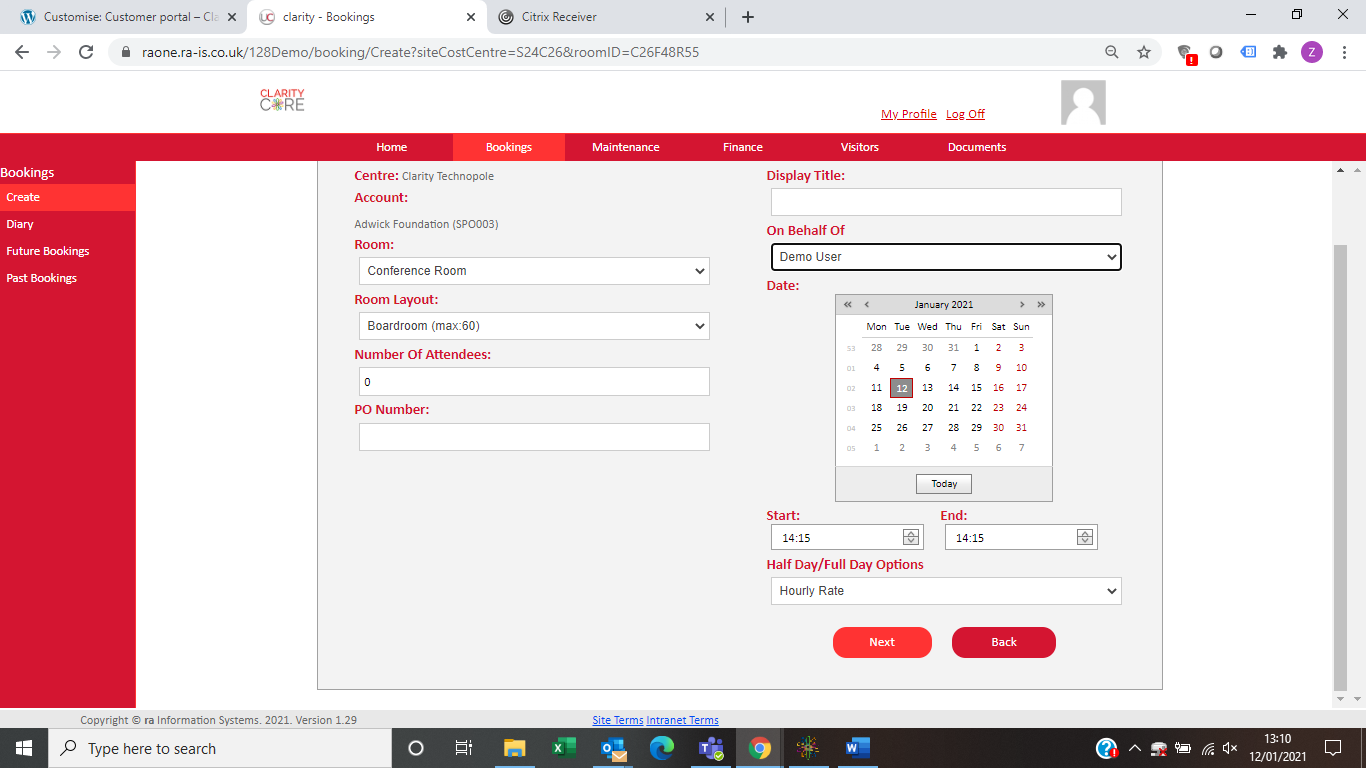
You can request to book a meeting room and any required catering directly from the Portal, as follows:
1. Either click on the Create Booking option on the left-hand menu, or double-click on the appropriate timeslot.
2. Complete the New Booking form, indicating the title to appear on the diary and any digital meeting room signage.
3. Click Next to move to the catering selection menu, or Back to cancel the booking.
4. To select catering and equipment options, expand the relevant category, using the red arrows, and tick each menu option required, indicating quantities and serving time as appropriate.
5. Click Submit to send the meeting room booking request to the reception team for approval, Edit Booking to go back to the room booking details, or Cancel to cancel the booking entirely.
6. Once submitted, please await a confirmation email from the reception team to indicate your booking is confirmed.
Viewing Future and Past Bookings
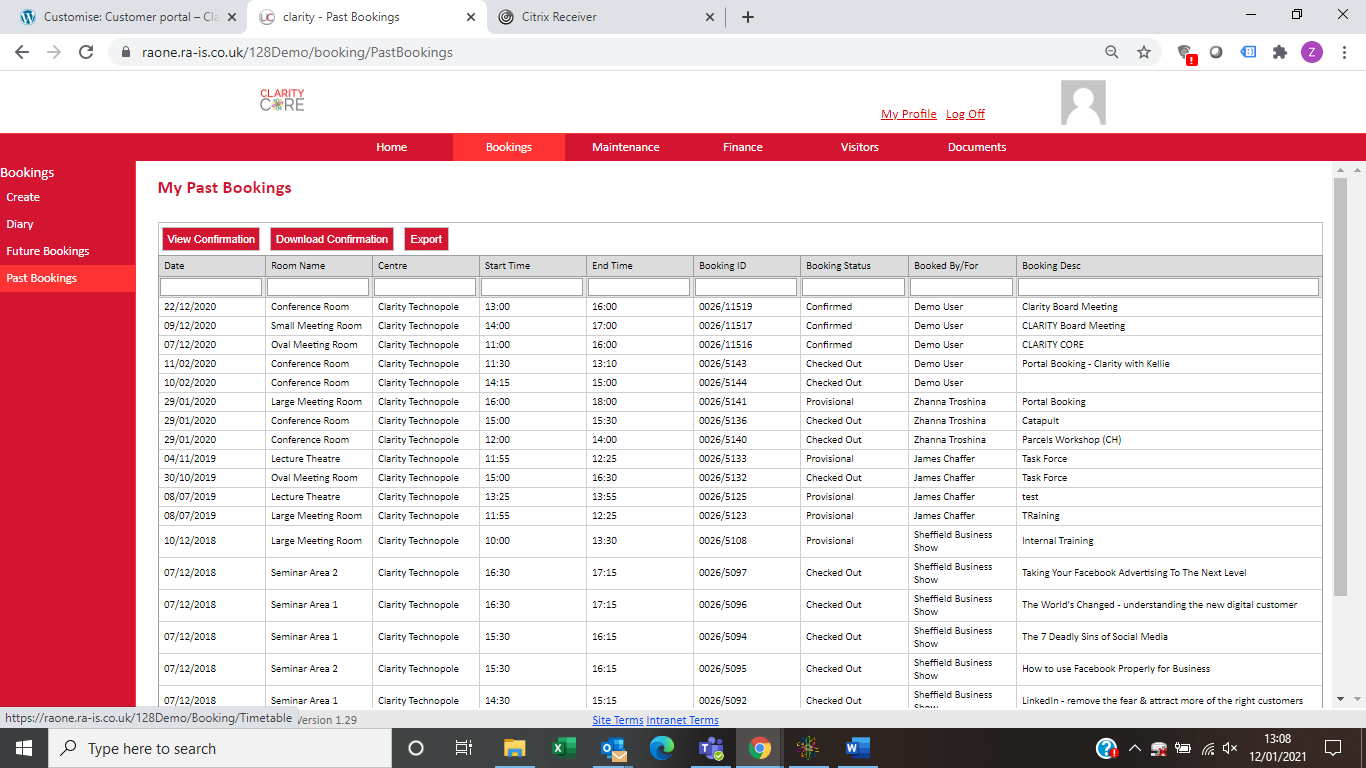
You can view a list of all upcoming or historical meeting room bookings, as follows:
1. Click on the Bookings option from the menu bar,
2. Click on Future Bookings or Past Bookings from the left-hand menu,
3. To view or amend a specific future bookings, select the booking from the list and select the appropriate action from the option buttons.
Service Desk Requests
You can view your existing Service Desk Requests and their current status on the Portal, as well as requesting new jobs.
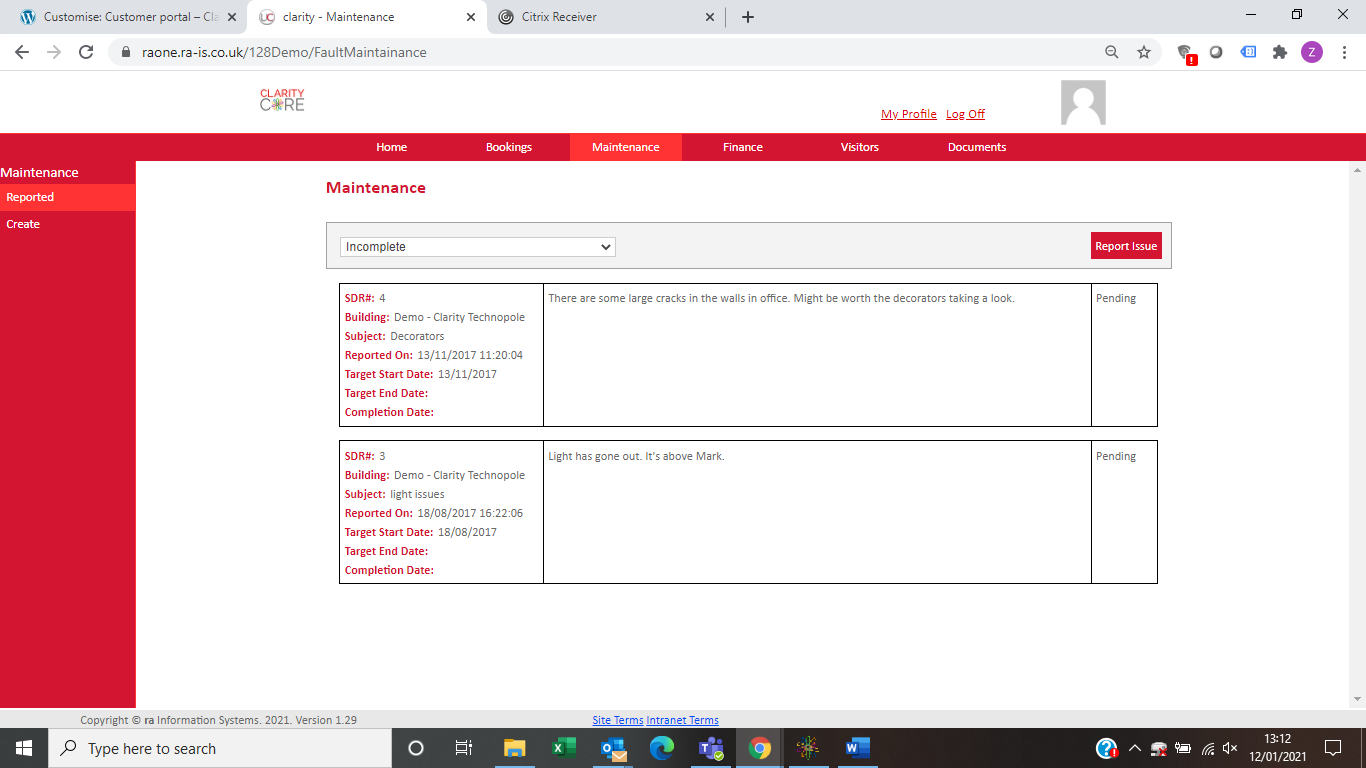
To access the current service desk request list, click on the Maintenance option from the menu bar. You can filter the view to show only complete or incomplete requests, see current status and estimated start and end dates, as well as full notes relating to each request.
You can log a Service Desk Request from the Portal, as follows:
1. Click on the Create option on the left-hand menu.
2. Complete the Report Issue form, indicating the subject, category and detailed notes as appropriate.
Click Log to submit the request to the Estates & Facilities team, or Cancel to cancel.
Site Visitors
You can view a list of all upcoming or historical site visitors for your company, as follows:
1. Click on the Visitors option from the menu bar
2. Click on Future Visits or Past Visits from the left-hand menu
3. To remove or amend a specific future visitor, select the visit from the list and select the appropriate action from the available options – ‘Delete’ or ‘Change Details’.
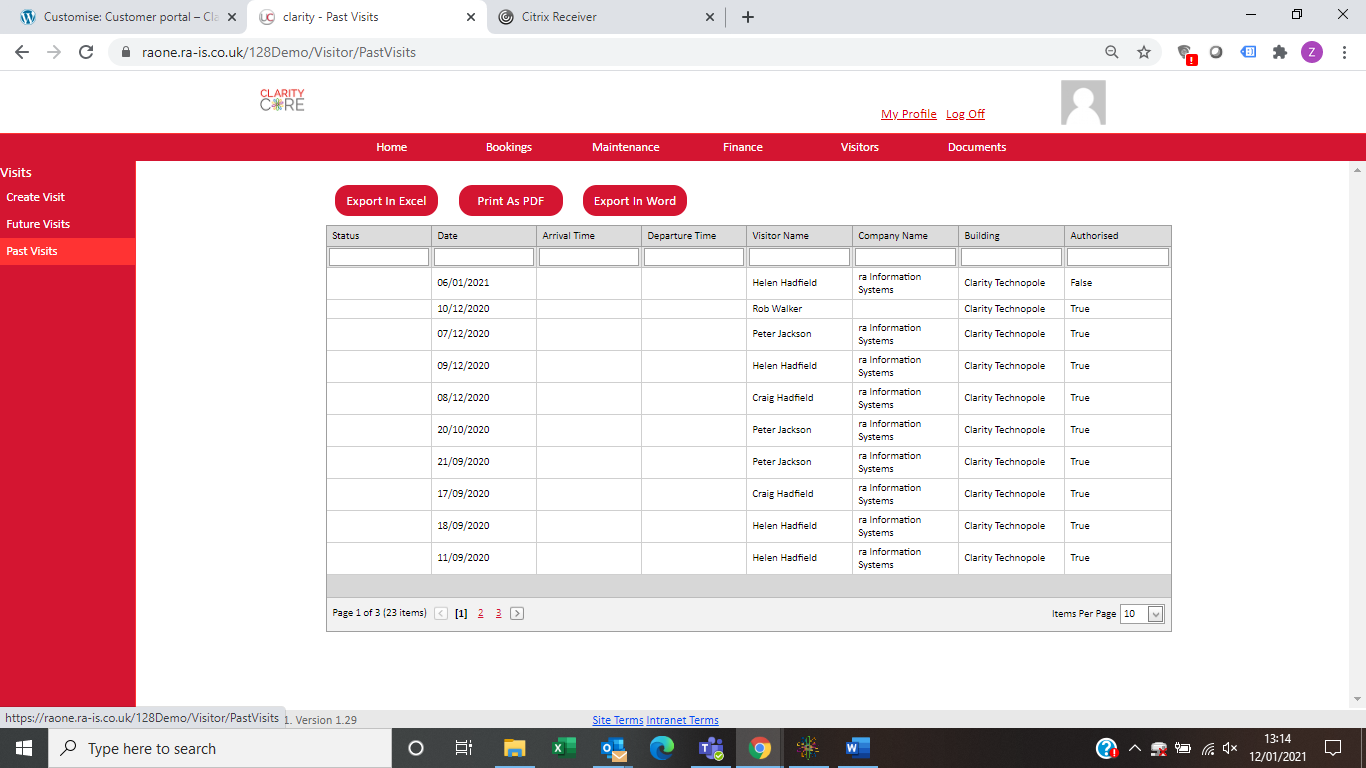
You can register a new or returning site visitor from the Portal, as follows:
1. Click on the Create Visit option on the left-hand menu.
2. Complete the Site Visitor form, selecting:
a. The date of the planned visit, with expected arrival and departure times. Users should select the date with both the correct expected start and end times of the visit. The times will default to the working day of the system in use.
b. The visitor due on site should be selected from the existing list of visitors where they exist or the “Add New Visitor” option should be selected to enter new visitor details.
The details and email address entered will be used to email the visitor their e-ticket and instructions and should be entered accurately.
Multiple Visitors can be selected at once from the Visitor list to allow easy entry of a specific visit for each visitor. The multi visitor option is only available for visitors that exist and have had their details captured in the past.
“Add Another?” when selected will take users to the New Visit Details screen upon successful creation of the current visit. This allows users to add similar visits over different dates and times very quickly.
c. The individual to be notified by email when the visitor signs-in electronically at Reception.
d. The building they are to be directed to on arrival.
3. Click Save to record the visit, or Cancel to cancel the entry.
Maintenance Enquiries
To access the full list of enquiries, click on the Maintenance option from the menu bar.
To report an issue, click on Create. Simply type in the relevant data and click Log.
Financial documents
You can access and export invoices clicking on the Finance option from the menu bar.
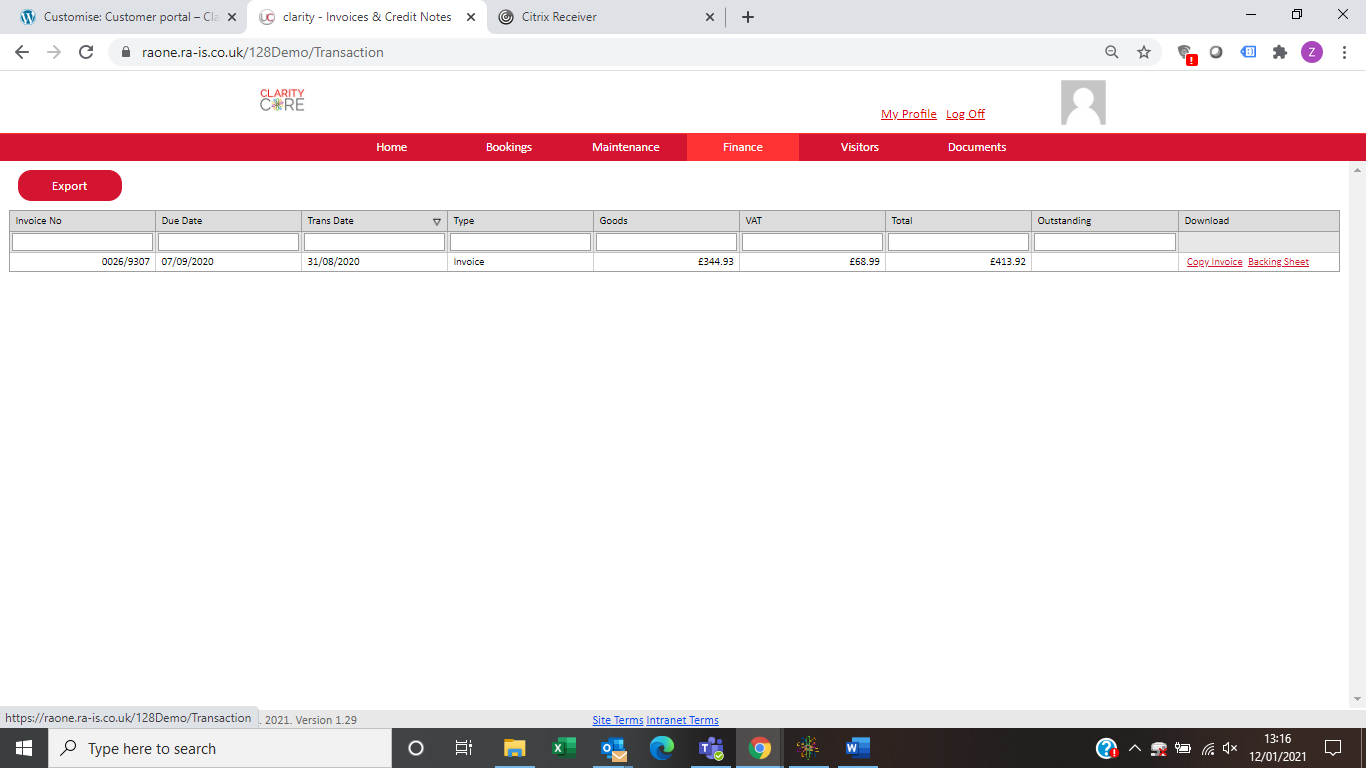
Lorem ipsum dolor sit amet, consectetur adipisicing elit, sed do eiusmod tempor incididunt ut labore et dolore magna aliqua. Ut enim ad minim veniam, quis nostrud exercitation.
Registering Your Account
Before logging on to the Portal for the first time, you will need to validate and register your account by following the below procedure:
1. You will receive an automated email with a link to the Portal’s initial registration page, and a temporary password.
2. You must click on this link and log on with the temporary password in order to validate your account, before you try to access the Portal for the first time. Trying to log on without first validating your account will result in a logon failure.
3. The link is time-limited, so please do register your account as soon as you receive the registration email, even if you don’t intend to use the Portal immediately, otherwise it may expire.
4. When you follow the link, you will be prompted to set your own password – this must be at least 6 characters long.
5. Once you have successfully registered your account, then you are ready to log on to the Portal for the first time!
Logging On to the Portal
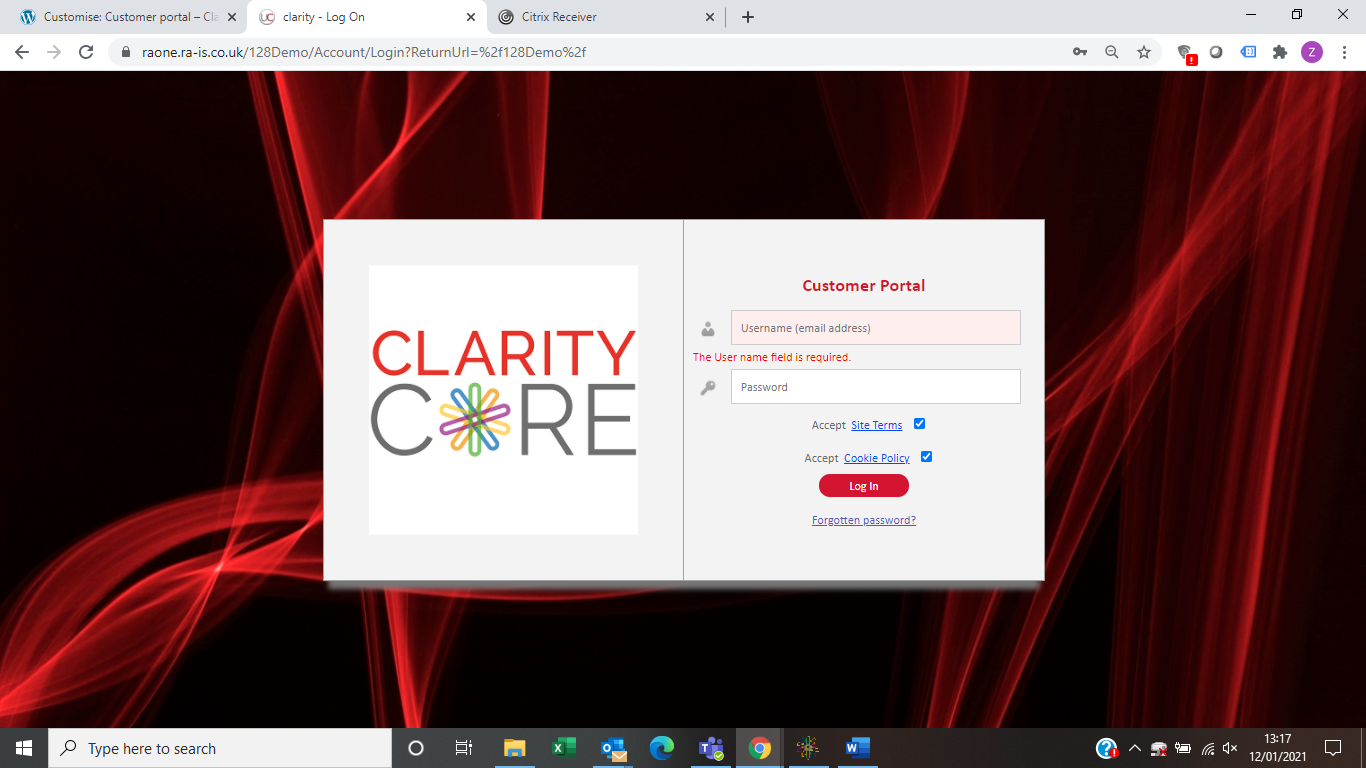
1. Open your Internet browser
2. Navigate to the Portal URL
3. Enter the email address you registered with in the Username box
4. Enter the password you set at registration in the Password box
5. Ensure you have accepted the Site Terms and Cookie Policy and click Login
Lorem ipsum dolor sit amet, consectetur adipisicing elit, sed do eiusmod tempor incididunt ut labore et dolore magna aliqua. Ut enim ad minim veniam, quis nostrud exercitation.
Resetting Your Password
1. From the logon screen click on the Forgotten password link.
2. Enter the email address you registered with in the Username box.
3. Click the Reset button.
4. You will be sent a system-generated temporary password via email.
5. Log on to the portal using this temporary password, where you will then be prompted to reset your password.